PDFNest - View & Create
DIG NetzProductivity
4.03.00 Reviews
- Version
- 1.0.5
- Installs
- 10.00K
- Age Rating
- Everyone
Screenshots
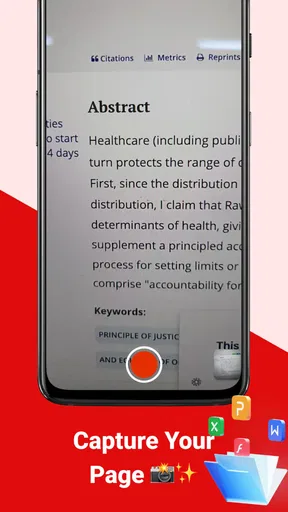
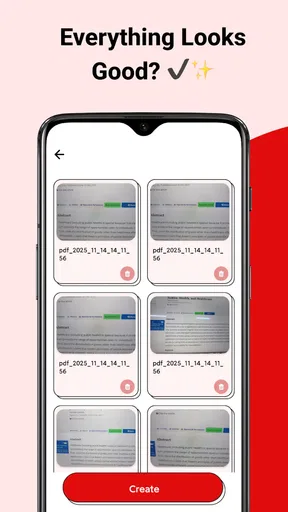
Our Review of PDFNest - View & Create
 Analysis by Appyee
I approached PDFNest as a practical productivity tool rather than a full office suite. Its purpose is straightforward: help me view and create PDF files without making document handling feel like a desktop task squeezed onto a phone. That focus is useful, especially when I need to check a form, prepare a simple document, or turn information into a file that is easy to share.
The app is free, aimed at everyone, and developed by DIG Netz. It belongs to the productivity category, where the real test is not how many buttons it offers but how quickly it helps me finish a small document job. After using it, I see the strongest appeal in short, focused sessions: opening a PDF while away from a computer, creating a basic file on a phone, or keeping a document workflow moving when connectivity and screen space are not ideal.
How PDFNest fits into everyday document work
The most important thing to understand is that PDFNest is built around two related tasks: viewing PDFs and creating them. Those tasks often happen together. I may receive a document, inspect it, notice that I need a separate file, and then create a PDF for sending or storing. Having both actions in one productivity app is more convenient than constantly switching between a viewer, a document editor, and a conversion tool.
I found the concept particularly suitable for people who use their phone as a working device instead of treating it only as a communication tool. Students can use it when checking reading material or preparing a file for submission. Freelancers may appreciate having a direct way to handle a document between appointments. Families can also use it for ordinary paperwork, such as keeping a digital copy of information that would otherwise remain scattered across messages and folders.
That convenience has a limit. A phone is still a small screen, and PDF work can become tiring when a document contains dense tables, tiny text, or many pages. PDFNest makes sense for quick access and uncomplicated creation. I would be more cautious about choosing it as my only tool for long editing sessions, complex layouts, or document production that requires precise control over every element.
The app has a 4.0 average from around two dozen ratings, with a small number of written reviews, and it has passed the ten-thousand-install mark. Those figures suggest an established enough starting point to attract real users, while also reminding me that this is not a heavily documented, universally tested platform. I would install it with realistic expectations: useful for focused PDF tasks, but not automatically a replacement for every dedicated document application.
What the creation side is good for
Creating a PDF on a mobile device is most valuable when the source material is already simple. A short note, a basic record, a compact handout, or a document that needs to preserve its appearance when shared are all sensible examples. In those situations, the PDF format is helpful because it is familiar and less likely to change visually between devices than an editable document.
My advice is to decide what the finished file needs to do before opening the app. If the goal is simply to produce a clean, portable document, a focused PDF creator can be faster than opening a large office suite. If the goal is to design a brochure, manage a long report, or revise content repeatedly with advanced formatting, the lighter mobile workflow may feel restrictive.
A useful habit is to prepare the content first. I would review wording, check names and dates, and arrange the information in a logical order before creating the final PDF. This reduces the need to repeat a mobile editing process and makes the app feel more like the last step in a workflow rather than the place where every decision has to be made.
Where connectivity changes the experience
Connectivity matters most around the edges of the task. Opening or creating a document may feel like a local action, but real workflows often involve receiving a file, sending the finished result, synchronizing it with another service, or checking information from a web page before creating the document. I therefore treat PDFNest as one part of a connected phone workflow, not as a guarantee that every surrounding step will work without a network.
When I have a stable connection, the experience is easier to plan. I can obtain the source document, work through the task, and share the result without interrupting the process. The app’s value becomes less about replacing other services and more about giving me a dedicated place to handle the PDF portion cleanly.
On a weak or changing connection, the sensible approach is to separate preparation from delivery. I would gather the necessary material first, create or inspect the document, and only then attempt to send it. This order avoids repeatedly restarting a task because a message, cloud location, or sharing destination is temporarily unavailable.
The key connectivity lesson is to distinguish document work from document transfer. PDFNest is relevant to the first part, while the second may depend on the apps and services around it. That distinction helps prevent an unfair expectation that a PDF utility should also solve every problem involving storage, messaging, or internet access.
A realistic mobile scenario
Imagine I am leaving a meeting and realize that I need to send a concise PDF summary before the end of the day. I can organize the main points on my phone, create the document, open it for a visual check, and prepare it for sharing. The useful part is the continuity: I do not have to wait until I return to a laptop just to produce a readable file.
The same scenario exposes the practical friction. A phone keyboard can slow down careful writing, and a small display makes it easier to overlook a line break or a crowded section. I would zoom through the finished document rather than assuming that a successful creation step means the file looks perfect. Checking the first page, headings, spacing, and final line is a small habit that can prevent an embarrassing send.
For a student, the workflow might be different. I could open a reading PDF between classes, identify the material I need, and create a separate document for a short response or summary. The app is most helpful when the output is compact and the task has a clear finish line. It is less attractive when I need to annotate extensively, compare several documents side by side, or perform detailed academic formatting.
For household paperwork, I would use it as a quick document station. A form or note can be turned into a PDF that is easier to keep with other records. I would still name the file carefully and place it in a known location, because a document is not truly organized just because it has been created. The app can support the action, but my filing habits determine whether I can find the result later.
Recovering from interruptions and mistakes
Mobile work is vulnerable to interruptions: a call arrives, the battery runs low, another app takes focus, or the connection changes while I am trying to share a file. The safest workflow is to avoid treating the first successful-looking screen as the end of the process. After creating a PDF, I would reopen it, inspect it, and confirm that the file is where I expect it to be before leaving the task.
If sharing fails, I would not immediately recreate the document. First I would check whether the file itself opens correctly, then try the transfer again through the available sharing route. Rebuilding a document when the real problem is connectivity wastes time and can create multiple confusing copies. A clear filename also helps distinguish the intended version from an earlier attempt.
Another useful recovery habit is to keep the source material separate from the finished PDF until I am satisfied. That way, a failed export or an unwanted revision does not force me to reconstruct the original content from memory. This is especially important on a phone, where switching between apps and locating earlier text can be slower than on a computer.
I also recommend a final visual pass before sending anything important. PDF creation is not only about whether a file exists; it is about whether the reader can understand it. Look for missing text, awkward page breaks, unreadable sections, and accidental blank space. This check is a genuine advantage of using a viewer immediately after creation, because it turns the app into both a production step and a basic quality-control step.
Using it carefully when data matters
PDF files often contain personal details, financial information, school records, or work documents. I would avoid assuming that a PDF tool automatically provides every privacy feature I might want. Before handling sensitive material, I would consider where the original came from, which app I use to share the result, and whether the recipient actually needs the full document.
A data-conscious workflow begins with reducing the document. If a recipient needs one page, I would avoid sending an entire collection of unrelated pages. If a file contains unnecessary personal information, I would remove that material before creating the final version when the workflow allows it. Smaller, more focused documents are easier to review and less likely to expose details by accident.
Connectivity also affects this decision. When a document must pass through messaging, cloud storage, or another online service, the transfer step deserves as much attention as the creation step. I would verify the recipient, check the selected file, and avoid sending a draft simply because the connection is available for a moment.
For ordinary, non-sensitive documents, PDFNest’s free availability makes experimentation easy. The age rating of Everyone also makes it approachable for a broad audience, although responsible document handling still depends on the person using it. An app’s accessibility does not remove the need to think about what is being created, stored, or shared.
Version, compatibility, and practical expectations
The current version is 1.0.5, and the app supports devices running Android 7.0 or newer. That broad platform reach is useful for people who keep an older phone and do not want a document utility that requires recent hardware or software. It also makes PDFNest easier to consider for shared household devices or a secondary phone used for paperwork.
At the same time, compatibility alone does not tell me how comfortable every device will feel. Older phones may offer less screen space, slower app switching, or less room for keeping several documents open in a wider workflow. I would judge the experience by the kind of work I plan to do: quick viewing and simple creation are more realistic than demanding document production on aging hardware.
The free price lowers the barrier to trying it. I can test whether the viewing experience suits my eyes, whether creation fits my habits, and whether the app behaves well alongside the storage and sharing tools I already use. That trial is worthwhile because PDF workflows are personal: one user may want a minimal utility, while another may immediately miss advanced controls from a larger office package.
How it compares with usual alternatives
The usual alternative is a broad office suite. Such suites are stronger when I need word-processing controls, spreadsheets, cloud collaboration, or complex formatting in one place. They can also feel heavy for a simple PDF task. PDFNest is more appealing when I want to focus on the PDF itself instead of navigating a large collection of unrelated tools.
A dedicated PDF reader may offer a more specialized reading experience, particularly for long documents or advanced annotation. If my main activity is studying large files, marking passages, or managing an extensive library, I would compare PDFNest carefully with an app designed primarily for reading. Its advantage is the combination of viewing and creation, not necessarily dominance in every reading feature.
Online PDF services are another common option. They can be convenient when I am already working in a browser, but they make the workflow more dependent on a connection and may be less comfortable on a small screen. A mobile app feels more direct for quick tasks, while a browser-based service may be better when I need a specialized conversion or editing operation that a focused phone utility does not cover.
Finally, the phone’s built-in document tools may be enough for occasional users. If I create a PDF only once in a while and already have a comfortable method, installing another app may not change much. PDFNest earns its place when I repeatedly need a simple, dedicated route for viewing and creating files, especially away from a computer.
Who should use it and who should skip it
I would recommend PDFNest to students, mobile-first workers, families managing routine paperwork, and anyone who wants a free way to keep PDF tasks close at hand. It is particularly sensible for users who value a short path from document idea to finished file and who are comfortable checking the result themselves before sharing it.
I would skip it if my daily work depends on complex layouts, extensive collaboration, advanced annotation, or a large document-management system. In those cases, a full office suite, a specialized PDF editor, or a desktop workflow may save more time in the long run. The same applies if I mostly read long PDFs and rarely create them; a reader-first application could be a better match.
My strongest practical recommendation is to use it with a simple three-stage routine: prepare the content, create the PDF, and inspect the finished file before transferring it. If the network is unreliable, add a fourth stage by treating sharing as a separate action rather than part of creation. This routine makes the app more dependable without pretending that connectivity problems belong entirely to the PDF tool.
My connectivity verdict
PDFNest is a focused productivity app with a sensible role in mobile document work. I like it most as a bridge between needing a PDF and having access to a computer: it gives me a direct place to view and create files, while its free availability makes testing low-risk. The combination is more useful than a viewer alone for people who regularly move from reading a document to producing one.
Its limitations are equally clear. A small screen can make detailed review uncomfortable, sharing may involve services outside the app, and users who need advanced document control may outgrow a focused utility. I would not choose it simply because it handles PDFs; I would choose it because my PDF tasks are usually short, mobile, and uncomplicated.
Overall, I see PDFNest as a practical companion for everyday document moments rather than a complete replacement for desktop publishing or specialist PDF software. If your work happens in brief sessions and your biggest need is to keep viewing and creating close together, it is worth trying. If your priority is deep editing or guaranteed independence from surrounding connectivity, I would look toward a more specialized alternative.
With its Everyone age rating, support for Android 7.0 and newer, and current version 1.0.5, it is accessible to a wide range of Android users. I would install it for quick document handling, keep my filenames and source files organized, and make a visual check before sending anything important. Used that way, PDFNest feels like a useful, honest solution for small PDF jobs on the move.
Verdict
Strengths of PDFNest - View & Create
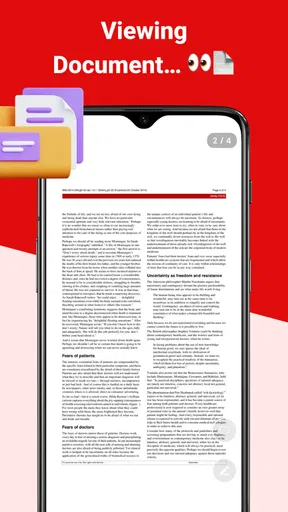
- Opens PDFs quickly, even when switching between several documents.
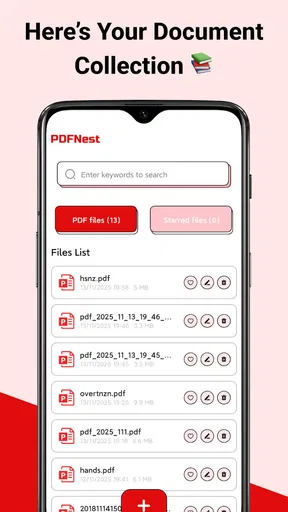
- Clean interface makes basic viewing and file management easy.
- Supports creating PDFs from images and selected files.
- Useful search function helps locate text in longer documents.
- Files can be shared directly from the app.
Limitations of PDFNest - View & Create
- Advanced editing tools may be limited compared with dedicated PDF suites.
- Some features may require a subscription or in-app purchase.
- Large image-based PDFs can take longer to load.
- Text extraction may be unreliable in scanned documents.
- Sharing and importing options can vary by device and operating system.
Similar Picks in This Category
View All
Google Calendar
Google LLC4.6

Google Drive
Google LLC4.3

Google Assistant
Google LLC3.9

Microsoft OneDrive
Microsoft Corporation4.6

Samsung Calendar
Samsung Electronics Co., Ltd.4.1

Microsoft OneNote: Save Notes
Microsoft Corporation4.6
Frequently Asked Questions
What is PDFNest - View & Create used for?
PDFNest - View & Create is designed for working with PDF documents on a mobile device. It lets you open and read files, browse pages, and create or organize PDF content from a convenient interface. It can be useful for students, office workers, and anyone who needs quick access to documents without relying on a desktop computer.
Can PDFNest - View & Create open PDFs stored on my phone?
Yes, the app is intended to help you access PDF files saved on your device or made available through your file manager and supported sharing options. After installation, you may need to grant permission to access documents or select a file manually. Availability can depend on your operating system, storage settings, and the location of the PDF.
Does PDFNest - View & Create allow users to create new PDF files?
The app’s main appeal is that it combines PDF viewing with creation features. Depending on the version and device, you may be able to create a PDF from supported content, combine information into a document, or save edited material as a PDF. Before downloading, check which creation tools are included in the current release.
Is PDFNest - View & Create free to download and use?
PDFNest - View & Create may be available as a free download, but some functions can depend on the app’s pricing model. Advanced creation tools, extra document options, advertising removal, or other premium features may require an in-app purchase or subscription. Review the store listing carefully so you understand what is included at no cost.
Is PDFNest - View & Create safe for handling private documents?
As with any document application, you should consider privacy before opening sensitive files. Install PDFNest - View & Create only from an official app store, review its requested permissions, and avoid granting access that does not seem necessary. For confidential documents, check the developer’s privacy policy and determine whether files are processed locally or uploaded to online services.
